This is where the planning signals become real supply. Create Supply Orders generates Requisition Worksheet lines from the latest States and Alerts data, proposing what to order, transfer, or produce for each SKU that has reached its reorder point. Run it after the States and Alerts calculation so the proposals are based on current buffer positions; from the worksheet you then review and carry the lines out into purchase, transfer, and production orders.
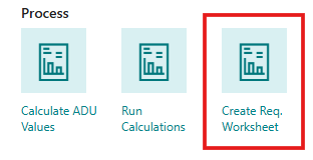
Open it from the Role Center Process group by choosing Create Req. Worksheet (or search for Create Requisition Worksheet Lines).
In the request dialog you set the Work Date and the Reorder Level Reached % threshold, and you can filter which SKUs are included (by responsible employee, location, item, or variant). Only SKUs at or below the threshold that match the filters get a worksheet line.
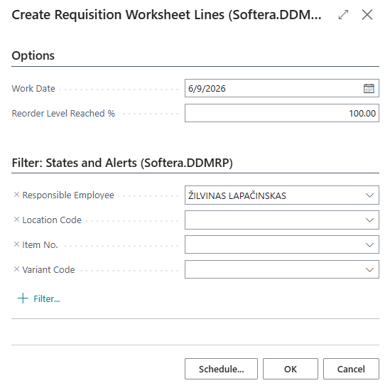
Req worksheets will be created based on data gathered through State and Alerts calculation procedure, so be sure to have fresh State and Alerts data before.
Requisition Worksheet
The Requisition Worksheet is where planners review and act on the proposals created in the previous step. It is useful because it puts every SKU that needs replenishing in one place, with the recommended quantity and due date already calculated — so instead of deciding what to order item by item, you confirm or adjust the suggestions and carry them out into real orders in a single pass.
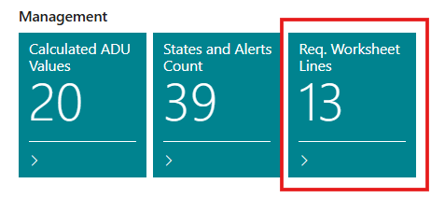
Open it from the Role Center Management group by choosing the Req. Worksheet Lines tile or searching for Requisition Worksheet (Softera.DDMRP).
Each row is one SKU's replenishment proposal: the suggested Order Today and editable Carry Out Qty., the due date, vendor, source availability, and the buffer/net-flow figures behind the suggestion. You review and adjust the lines here before turning them into orders.
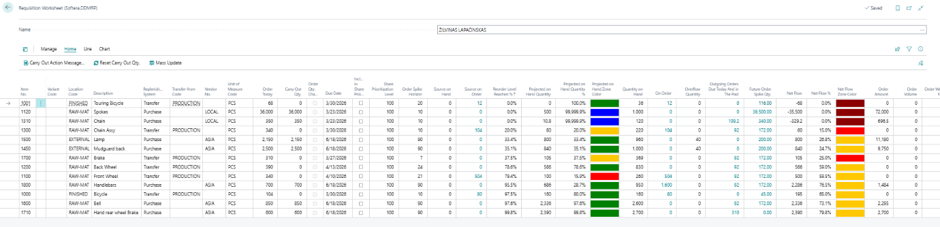
Req worksheet has one line per SKU view based on DDMRP reorder logic.
Field Name | Field Meaning |
|---|---|
Item No. | The item this requisition line is for. |
Variant Code | The item variant, if applicable. |
Location Code | The location where the item should be replenished. |
Description | The item description, shown for reference. |
Replenishment System | How the item is replenished: Purchase, Transfer, or Production. |
Transfer-from Code | The source location for transfer orders. |
Vendor No. | The vendor used for purchase orders. |
Unit of Measure Code | The unit of measure for the order quantity. |
Order Today | Whether an order should be created today, based on the DDMRP buffer calculation. |
Carry Out Qty. | The recommended quantity to order, from the buffer calculation. This is the quantity used when the action message is carried out. |
Order Qty. Changed | Marks that the Carry Out Qty. was changed manually after the system calculated the proposal. |
Due Date | The due date for the proposed order — work date plus the SKU lead time or decoupled lead time, per the replenishment/explosion logic. |
Include in Share Prioritization | Whether this line takes part in share prioritization. When enabled, changing the prioritization level recalculates Net Flow, Order Today, Carry Out Qty., and the order metrics. |
Share Prioritization Level | The TOG percentage used as this line's replenishment target when share prioritization is on. Order Today = TOG × level % − Net Flow, then the SKU rules apply. |
Order Spike Horizon | The horizon, in days, used to detect order spikes for the SKU. |
Source on Hand | On hand inventory at the transfer-from (source) SKU. |
Source on Order | Incoming supply at the transfer-from (source) SKU. |
Reorder Level Reached % | Net Flow as a percentage of Top of Yellow (TOY). Above 100% means no replenishment is needed; 100% or less means it should be proposed. |
Projected on Hand Quantity | The lowest projected inventory within the decoupled lead time horizon. |
Projected on Hand Quantity % | The projected on-hand inventory as a percentage of Top of Yellow (TOY). |
Projected on Hand Zone Color | The projected on-hand zone color. |
Quantity on Hand | The current on-hand inventory quantity. |
On Order | The total quantity currently on order (incoming supply). |
Overflow Quantity | The quantity above Top of Green (TOG). |
Outgoing Orders Due Today and in the Past | The quantity of orders due today or overdue, needing immediate attention. |
Future Order Spike Qty. | The quantity of future order spikes (unusually large demand) within the order spike horizon. |
Net Flow | The net flow position: On Hand + On Order − qualified demand. |
Net Flow % | Net Flow as a percentage of Top of Yellow (TOY). |
Net Flow Zone Color | The net flow zone color. |
Order Amount | The total monetary value of the recommended order quantity. |
Order Volume | The total volume of the recommended order quantity, for shipping and storage planning. |
Order Weight Netto | The total net weight of the recommended order quantity. |
Order Weight Brutto | The total gross weight of the recommended order quantity. |
Order Pallets | The number of pallets needed for the recommended order quantity. |
DDMRP Management Type | The DDMRP management type of the SKU. |
Additional columns (hidden by default — can be added through Personalization) | |
Additional Order Group | The additional order group used to batch replenishment orders. |
Execution TOR | Execution Top of Red — the minimum buffer protection level. |
Execution TOY | Execution Top of Yellow — the reorder point. |
Execution TOG | Execution Top of Green — the maximum inventory target. |
TOR | Standard Top of Red — the minimum buffer protection level. |
TOY | Standard Top of Yellow — the reorder point. |
TOG | Standard Top of Green — the maximum inventory target. |
Item Category Code | The item category, used for classification and filtering. |
Worksheet Batch Name | The requisition worksheet batch this line belongs to. |
Line No. | The line number within the worksheet batch. |
Description 2 | The item's secondary description. |
Entry No. | The entry number of this line. |
Projected on Hand Zone | The alert zone color based on projected on-hand levels. |
Net Flow Zone | The alert zone color based on net flow levels. |
Qualified Outgoing Demand | The total qualified outgoing demand within the Decoupled Lead Time (DLT) horizon. |
Direct Unit Cost | The direct unit cost of the item, used to calculate the order amount. |
Qty. per Unit of Measure | The number of base units in one unit of the specified unit of measure. |
Quantity (Base) | The quantity expressed in the item's base unit of measure. |
Created Order No. | The order number of the replenishment order created from this line. |
Yellow Adj. Factor Code | The Yellow Adjustment Factor classifier assigned to the SKU, used to adjust the Yellow buffer zone calculation. |
You can read more about the individual buttons and page navigation in section Detailed Navigation.
Carry Out Action Message
Carrying out the action message is the step that turns a worksheet proposal into a real supply order. It is needed because the worksheet lines are only suggestions until they are carried out — running Carry Out Action Message creates the actual purchase, transfer, or production orders for the quantities and dates you confirmed.
Before carrying out, review and adjust the lines as needed:
Correct Carry Out Qty (optional, if needed)
Correct Due Date (optional, if needed)
Select alternative Vendor (optional, if needed). Vendor must be on Items Vendor list.
Press Carry Out Action message.
Share Prioritization is feature that helps to update Carry Out qty proportionally for multiple lines. To use it:
Tick box Include in Share Prioritization for lines necessary to adjust.
Set Share Prioritization Level for those lines. Figures above one hundred increase qty, below one hundred – decrease. Carry out qty is recalculated automatically.
Set equal Share Prioritization Level for all items in one order to achieve equal demand coverage period for all items in an order.
Share Prioritization recalculates the proposed Order Today and Carry Out Qty. for the affected lines based on the selected prioritization level and the SKU buffer values, then rounds each result to the SKU's order modifiers (Minimum and Maximum Order Quantity and Order Multiple). For transfer lines, the final Carry Out Qty. may be further limited by the inventory available at the source location. Editing Carry Out Qty. by hand on any line marks that line as Changed by User and excludes it from automatic recalculation until the flag is cleared.
You may filter lines to carry out values in batches.
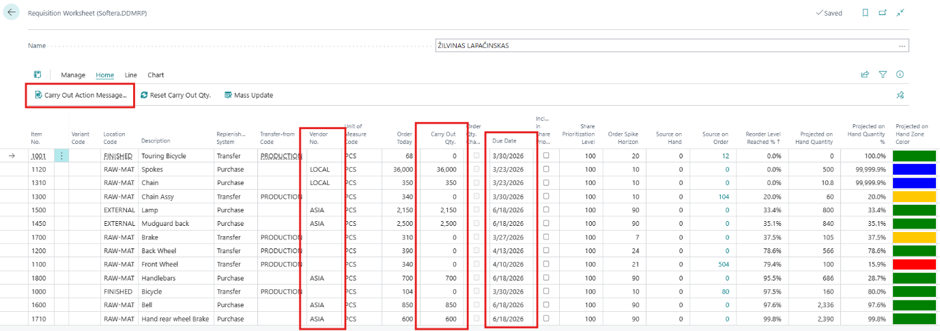
In case you do not need to carry out some lines, it is advisable to delete them from worksheet.
When Carry Out Action Message is run, the system creates a separate supply document for each replenishment system — purchase orders for purchase lines, transfer orders for transfer lines, firm planned production orders for production lines, and assembly orders for assembly lines. Lines that share the same Location Code, Vendor No., Transfer-from Code, Due Date, and Additional Order Group are merged into a single document, so one order can cover multiple worksheet lines.
Processed lines are moved to Requisition Worksheet Archive Lines and removed from the active worksheet. The States and Alerts records for the affected SKUs are updated to reflect the newly created supply quantities.
Reset Carry Out Qty.
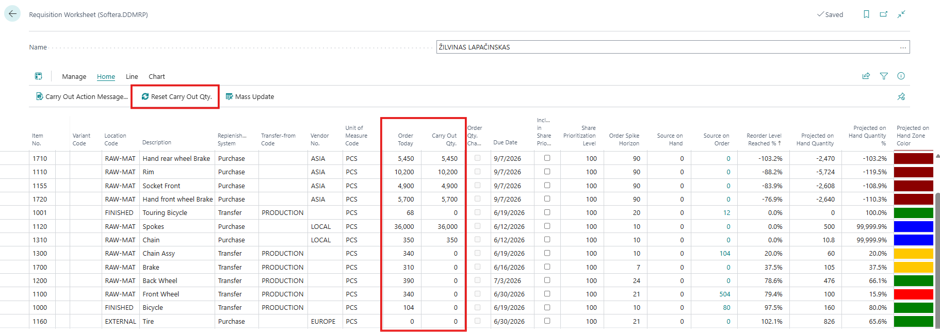
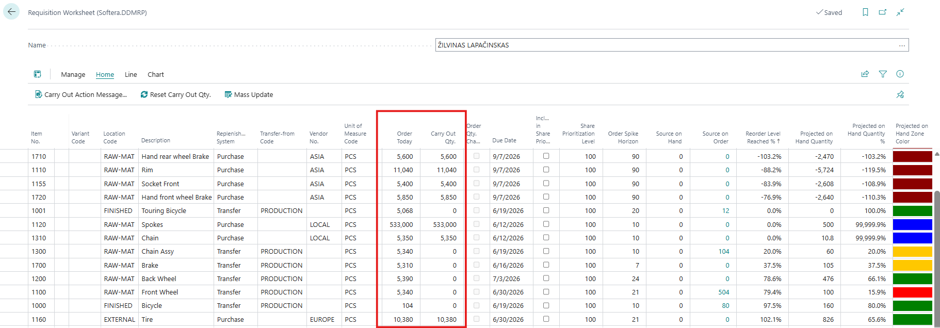
Reset Carry Out Qty. restores each line's Carry Out Qty. back to the system-calculated Order Today value and clears the manual-edit markers — Share Prioritization and Changed by User — so the line is treated as a fresh system proposal again. It is useful when you have changed quantities by hand and want to discard those edits — for example, after a fresh calculation — so every line goes back to the DDMRP recommendation in one click instead of being corrected line by line.
Before resetting, some lines have a manually edited Carry Out Qty. (highlighted) that differs from the calculated Order Today.
After resetting, the Carry Out Qty. matches the system's Order Today suggestion again, so the proposals reflect the current buffer calculation rather than the earlier manual edits.
Requisition Worksheet Archive Lines
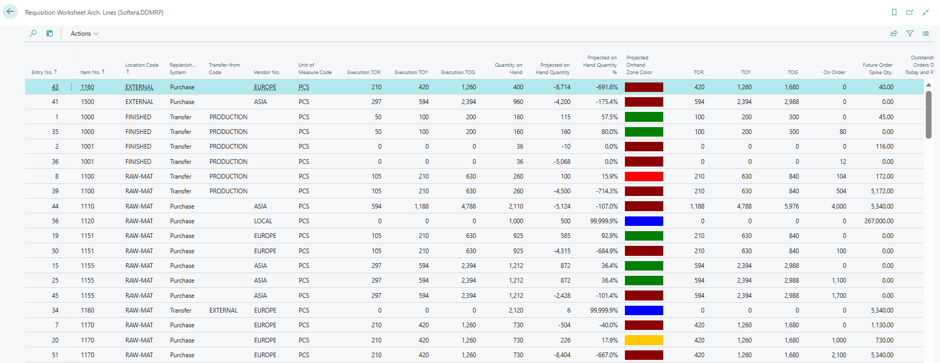
Requisition Worksheet Archive Lines stores requisition worksheet lines after they have been carried out. Use this page to review which proposals were processed, what quantities were carried out, and which supply document was created from each line.
To open the page, go to the Role Center, choose Links, and then choose Requisition Worksheet Arch. Lines (Softera.DDMRP) under the Requisition Worksheet group. You can also open it directly by searching for Requisition Worksheet Arch. Lines (Softera.DDMRP) in Business Central.

Field Name | Field Meaning |
|---|---|
Entry No. | The entry number of this archived line. |
Item No. | The item this archived requisition line is for. |
Description | The item description, shown for reference. |
Description 2 | The item's secondary description. |
Location Code | The location the archived line applies to. |
Variant Code | The item variant, if applicable. |
Replenishment System | The replenishment method that was planned: Purchase, Transfer, or Production. |
Transfer-from Code | The source location for transfer orders. |
Vendor No. | The vendor used for purchase orders. |
Unit of Measure Code | The unit of measure for the item quantity. |
Additional Order Group | The additional order group, used to batch replenishment orders. |
Execution TOR | Execution Top of Red — the minimum buffer protection level for the SKU. |
Execution TOY | Execution Top of Yellow — the reorder point for the SKU. |
Execution TOG | Execution Top of Green — the maximum inventory target for the SKU. |
Quantity on Hand | The on-hand inventory quantity at the time of archiving. |
Projected on Hand Quantity | The projected inventory that was calculated at the time of archiving. |
Projected on Hand Quantity % | The projected on-hand inventory as a percentage of Top of Yellow (TOY). |
Projected on Hand Zone Color | The projected on-hand zone color at the time of archiving. |
TOR | Standard Top of Red — the minimum buffer protection level. |
TOY | Standard Top of Yellow — the reorder point. |
TOG | Standard Top of Green — the maximum inventory target. |
On Order | The total quantity that was on order (incoming supply) at the time of archiving. |
Future Order Spike Qty. | The quantity of future order spikes (unusually large demand) identified at the time of archiving. |
Outstanding Orders Due Today and Past | The quantity of orders that were due today or in the past at the time of archiving. |
Net Flow | The net flow position at the time of archiving: On Hand + On Order − qualified demand. |
Net Flow % | Net Flow as a percentage of Top of Yellow (TOY). |
Net Flow Zone Color | The net flow zone color at the time of archiving. |
Reorder Level Reached % | Net Flow as a percentage of Top of Yellow (TOY). Above 100% means no replenishment was needed; 100% or less means it was proposed. |
Include in Share Prioritization | Whether the line was included in share prioritization when it was carried out. |
Share Prioritization Level | The share prioritization level that was assigned to the line at the time of archiving. |
Due Date | The calculated due date for the recommended replenishment order that was archived. |
Order Spike Horizon | The order spike horizon, in days, that was configured at the time of archiving. |
Order Today | The order quantity that was recommended on the archived date. |
Overflow Quantity | The quantity above the Top of Green (TOG) buffer level. |
Carry Out Qty. | The quantity that was carried out from this line — the system recommendation or the manually adjusted value. |
Changed by User | Marks that the Carry Out Qty. was manually modified by a user before it was carried out. |
Order Amount | The total monetary value of the archived order quantity. |
Order Volume | The total volume of the archived order quantity. |
Order Weight Netto | The total net weight of the archived order quantity. |
Order Weight Brutto | The total gross weight of the archived order quantity. |
Order Pallets | The number of pallets required for the archived order quantity. |
DDMRP Management Type | The DDMRP management type of the SKU. |
Item Category Code | The item category that was assigned to the item at the time of archiving. |
Worksheet Batch Name | The requisition worksheet batch the line belonged to. |
Line No. | The line number within the worksheet batch. |
Qualified Outgoing Demand | The total qualified outgoing demand considered at the time of archiving. |
Direct Unit Cost | The direct unit cost of the item used at the time of archiving. |
Qty. per Unit of Measure | The number of base units in one unit of the specified unit of measure. |
Quantity (Base) | The quantity expressed in the item's base unit of measure. |
Created Order No. | The order number of the replenishment order created from this line, if applicable. |