API (E-Invoice) Setup
You can navigate to E-Invoice Setup page by entering the page name in search.
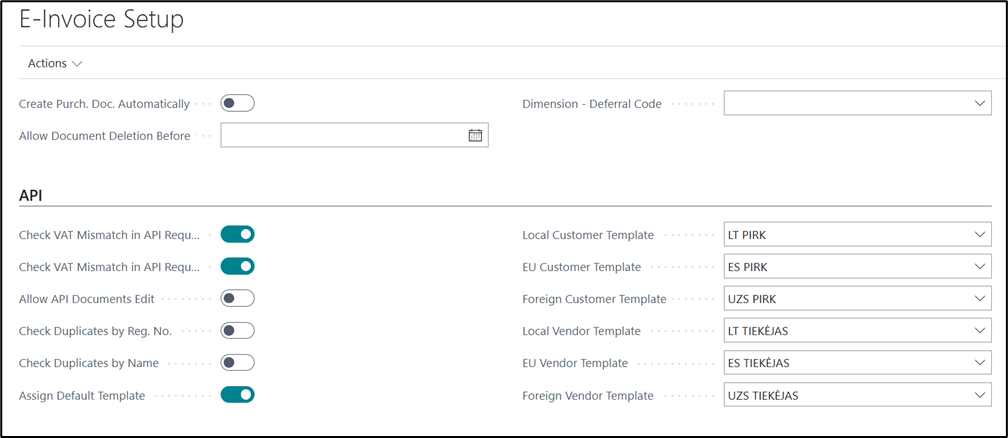
This setup affects the following API entities: customer, vendor, purchaseInvoice, purchaseCreditMemo, salesInvoice, salesCreditMemo, salesOrder.
Document processing setup
| Field | Description |
|---|---|
| Check VAT Mismatch in API Request (Purchase) | Ignores VAT mismatch check for purchase document creation, VAT can be adjusted using Correct VAT Differences in Purchase/Sales Documents (ESF) report. |
| Check VAT Mismatch in API Request (Sales) | Ignores VAT mismatch check for sales document creation, VAT can be adjusted using Correct VAT Differences in Purchase/Sales Documents (ESF) report. |
| Allow API Documents Edit | Documents created via E-Invoice API will have a property "Created via API" which by default prevents users from editing these documents. |
| Check Duplicates by Reg. No. | Enables checking of Registration Number in Customer/Vendor API. If system finds a record that has the same value, it throws an error and does not allow to insert a new record. |
| Check Duplicates by Name | Enables checking of customer/vendor Name in Customer/Vendor API. If system finds a record that has the same name, it throws an error and does not allow to insert a new record. |
Customer/Vendor template auto-assignment
| Field | Description |
|---|---|
| Assign Default Template | Indicates whether template code for customer/vendor should be assigned automatically. |
| Local Customer Template | Determines which template should be assigned to a local customer. A customer is considered local if they do not have a country assigned or if their country matches the one specified in the Company Information. |
| EU Customer Template | Determines which template should be assigned to EU customer. |
| Foreign Customer Template | Determines which template should be assigned to foreign customer. |
| Local Vendor Template | Determines which template should be assigned to a local vendor. A vendor is considered local if they do not have a country assigned or if their country matches the one specified in the Company Information. |
| EU Vendor Template | Determines which template should be assigned to EU vendor. |
| Foreign Vendor Template | Determines which template should be assigned to foreign vendor. |
VAT mismatch check
Additional setup for the VAT mismatch check:
| Field | Description |
|---|---|
| Allow VAT Auto Correction | Allows for VAT Difference, that doesn't exceed Max. allowed VAT difference in General Ledger Setup, to be adjusted during POST action. |
How is VAT Mismatch calculated?
Business Central checks the two API total fields independently against its own calculated amounts:
- apiTotalAmountExclVAT sent in the request is compared against the Amount Excl. VAT calculated in BC.
- apiTotalAmountInclVAT sent in the request is compared against the Total Amount Incl. VAT calculated in BC.
If either comparison doesn't match, BC returns a VAT mismatch error on POST — unless Allow VAT Auto Correction permits adjusting a difference within the allowed threshold, or the relevant Check VAT Mismatch in API Request setting is used to skip the check for that document type.