When creating a sales document, the information used in Softera.eDoc will be filled in, along with all the necessary information about the selected customer. If sales can be made under different contracts, in the "Invoice Details" tab, in the "Public Purchase Code" field, you must select the required contract.
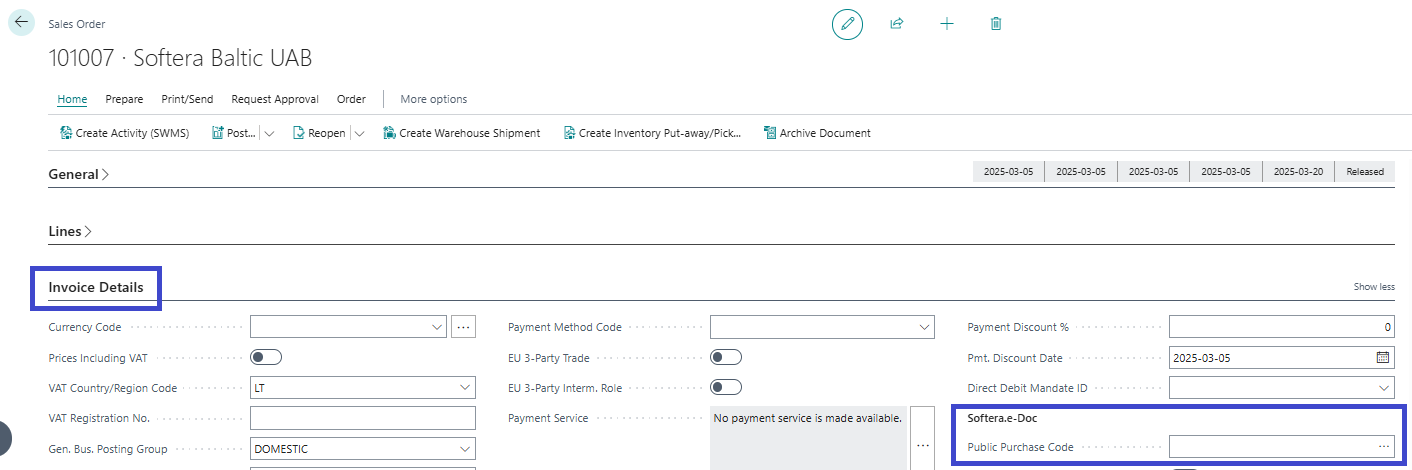
This field is found in the following sales documents: "Sales Order", "Sales Return Order", "Sales Invoice", "Sales Credit Memos".
After completing all the steps with the sales document and posting the sales invoice (or sales credit memo), BC will automatically create an E-Document and send it to the PEPPOL system. The E-Document can be viewed from the posted document.
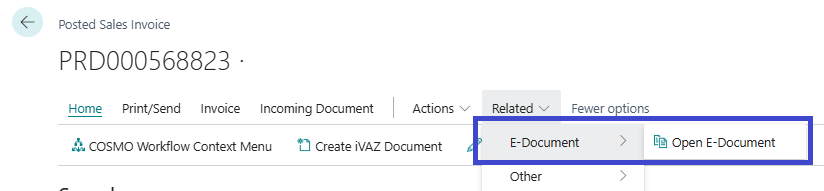
All the needed information for the E-Document is taken from sales invoice. Example: item descriptions are taken from sales invoice lines, not the item card.
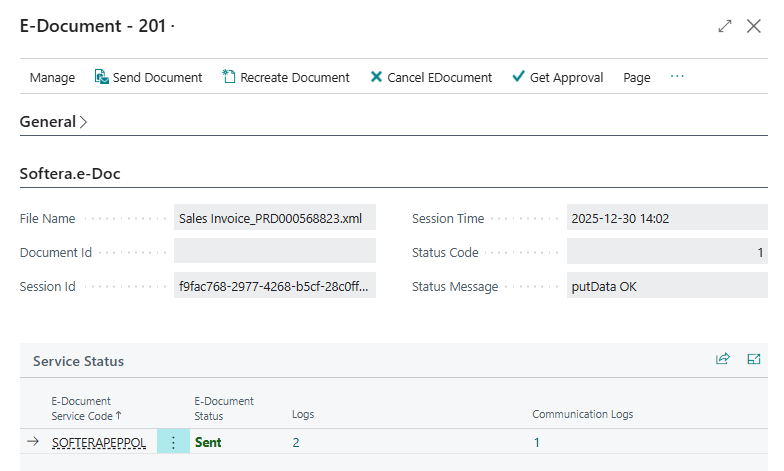
In the opened card, you can see all the information about the E-Document. The Softera.e-Doc tab shows the status of the document. The field "Status Message" shows if the document was successfully accepted in the SABIS system. If SABIS rejects the E-Document based on the data requirement - it will be shown in this field.
If the E-Document is rejected by the customer in SABIS - this information will not be shown in BC At the moment - this information can only be seen in SASBIS..
The "Service Status" list shows the status of the app service "SOFTERAPEPPOL" and, if necessary, you can view the actions performed with the document. To do this, click on the number in the "Logs" column.
HANDLING ERRORS
If an error is made in a document, it can be corrected using standard means. If an incorrect purchase contract code was specified, it can also be updated by selecting "Update Document".
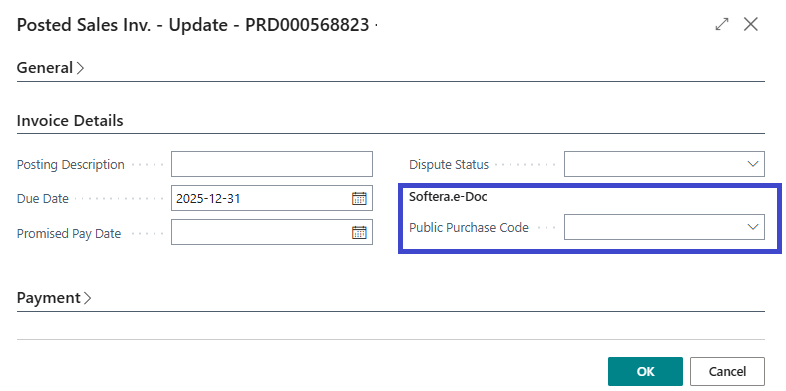
After making the correction, you need to go back to "E-Document" and click the "Recreate Document" button, i.e. recreate the document. After recreating, BC will automatically send it again to PEPPOL.
CREATING E-DOCUMENT MANUALLY
If a customer specifies the need to receive the sales invoice in SABIS after the posting of the sales invoice, E-Document can be created manually by following these steps:
- Fill the needed information in the customer card (detailed in the "Customer Cards" section).
- Correct the posted sales invoice by entering the "Public Purchase Code" (detailed above in the "Handling errors").
- Manually create the E-Document:
.PNG)
After these steps, E-Document will be processed the same way as it would after posting.