ADU Setup Versions
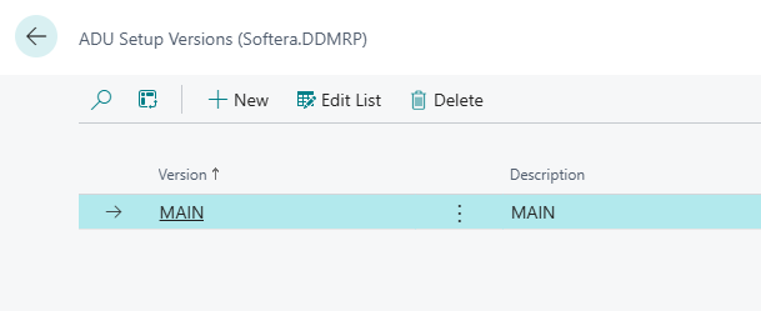
Normally, a single ADU Setup Version is all you need — the rest of this section is only relevant if you want to model and compare different planning scenarios. ADU Setup Versions define how many separate sets of Average Daily Usage (ADU) values are maintained for DDMRP planning.
You can open the page from the Links, as shown in the pictures below, or by searching for ADU Setup Versions(Softera.DDMRP).
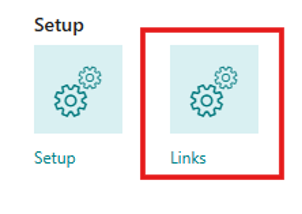

Define the ADU value versions that will be used in DDMRP planning. In most cases, a single version is sufficient for regular planning. When different planning scenarios need to be modelled, compared, or tested, create a separate ADU version for each scenario.
General Setup
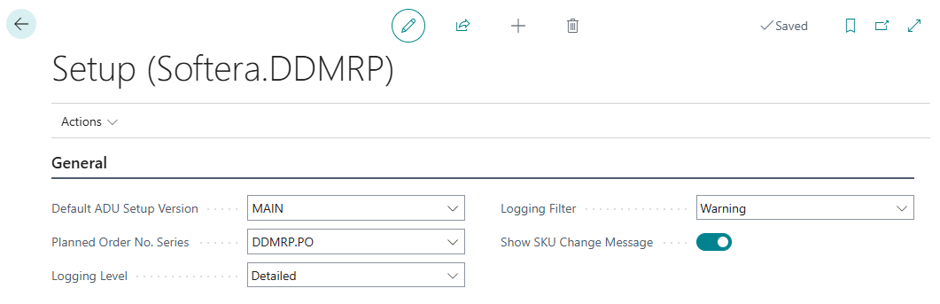
The General Setup page holds the main configuration for Softera DDMRP Planner. It defines the default ADU version, the number series for planned orders, and how DDMRP processes are logged.
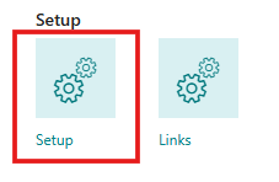
Open the page from the Setup, as shown in the pictures below, or by searching for Setup (Softera.DDMRP).
Field Name | Field Meaning |
|---|---|
Default ADU Setup Version | Specifies the default ADU Setup Version that is used when calculating average daily usage (ADU) values. |
Planned Order No. Series | Specifies the number series that is used to assign numbers to planned orders created by the DDMRP process. |
Logging Level | Specifies the level of detail that is logged for DDMRP processes:
|
Logging Filter | Specifies which log entry types are shown when viewing log entries:
|
Show SKU Change Message | Specifies whether to show a message after a stockkeeping unit (SKU) parameter is changed. |
Create Level Colors
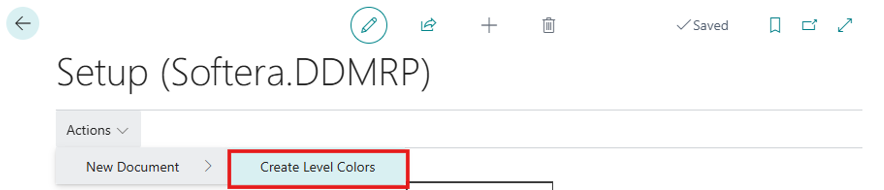
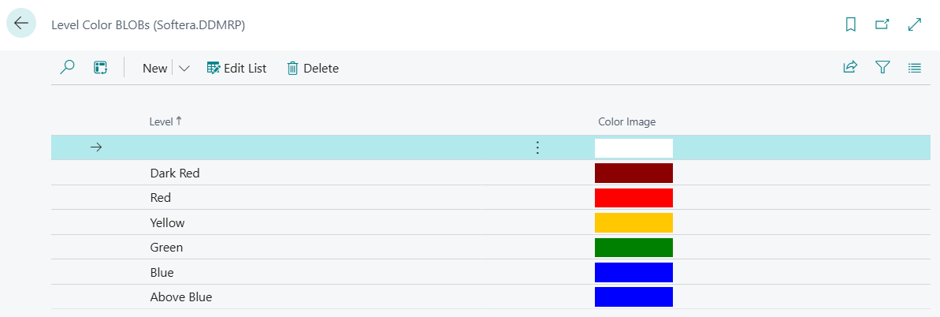
Create Level Colors is a one-time setup action that seeds the colors used in the DDMRP buffer zone visuals. Running it clears the existing color records and recreates the full set, so each buffer zone alert level is shown with a consistent color.
Run the action from the Actions menu (Create Level Colors) or by searching for Create Level Colors (Softera.DDMRP). You typically run it once during initial setup, or again if the color records have been deleted.
The action creates six colors, ordered from critical stockout to overstocked:
ADU Profiles
An ADU profile is a reusable set of rules that tells the system how to calculate Average Daily Usage (ADU) for the SKUs it is assigned to — which history period to look at and how much history is needed for the result to be trusted. You assign a profile to each SKU that uses Worksheet or Dynamic ADU calculation.
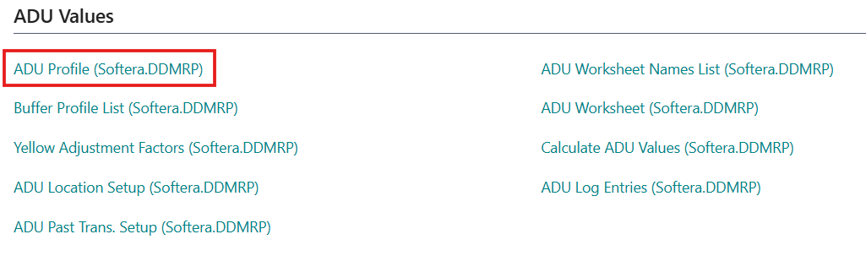
Open the page from the Links, as shown in the pictures below, or by searching for ADU Profiles (Softera.DDMRP).
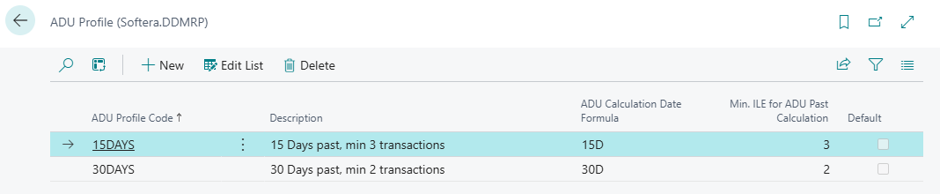
Create one profile per calculation rule you need and assign it to the relevant SKUs.
Field Name | Field Meaning |
|---|---|
ADU Profile Code | A short code that identifies this profile. You select it on the SKU to apply these calculation rules. |
Description | A free-text name describing the profile's purpose, so it is easy to recognize when assigning it to SKUs. |
ADU Calculation Date Formula | How far back the system looks at item ledger usage. The start date is Work Date minus this formula, and total usage in that window is divided by the number of days to get ADU. |
Min. ILE for ADU Past Calculation | The minimum number of historical item ledger entries needed for the result to be trusted. If there are fewer, the value is sent to the ADU worksheet for review instead of updating ADU Setup automatically. |
Default | Marks this profile as the default. The default profile is suggested automatically when you set up a new SKU. |
Buffer Profile List
A Buffer Profile is a named, reusable set of buffer parameters that can be assigned to many SKUs at once. Instead of maintaining LTF, VF, spike settings, and ADU calculation rules on every SKU card individually, you define them once on a profile and assign the profile to a group of similar items — all assigned SKUs are then planned with the same parameters, and changing the profile updates them all.
To open the list, go to the Role Center, choose Links, and then choose Buffer Profiles under the ADU Values group. You can also search for Buffer Profile List (Softera.DDMRP) in Business Central.
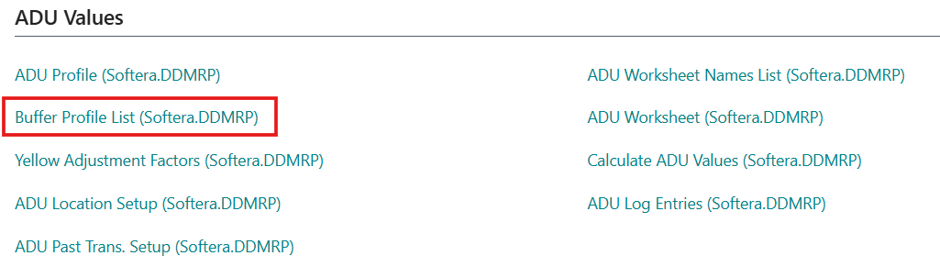
The Buffer Profile List shows the existing profiles with their key parameters — the buffer management type, the factor coefficients, and the assigned ADU profile and calculation type. Each line is one reusable profile that can be assigned to SKUs.

The Buffer Profile Card contains the following fields:
Field Name | Field Meaning |
|---|---|
Code | The unique identifier of the buffer profile. |
Description | A description of the buffer profile. |
Buffer Mgmt. Type | The buffer management type that defines the calculation methodology applied by this profile. Currently Default DDMRP is available. |
Lead Time Factor | The Lead Time Factor (LTF) coefficient used to calculate the Green and Red Base buffer zones. A value of 1.00 corresponds to 100%. |
Variability Factor | The Variability Factor (VF) coefficient used to calculate the Red Safety zone. A value of 1.00 corresponds to 100%. |
Order Spike Horizon Factor | The coefficient applied to the SKU's Decoupled Lead Time (DLT) to derive the Order Spike Horizon. A value of 1.00 keeps the horizon equal to DLT; higher values extend it, lower values shorten it. |
Order Spike Threshold Factor | The coefficient applied to the SKU's Top of Red (TOR) to derive the Order Spike Threshold. A value of 1.00 keeps the threshold equal to TOR; higher values raise it (fewer spikes qualify), lower values lower it. |
ADU Profile Code | The ADU profile that governs how Average Daily Usage is calculated for SKUs assigned to this buffer profile. |
ADU Calculation Type | The method used to calculate the Average Daily Usage for SKUs assigned to this buffer profile. |
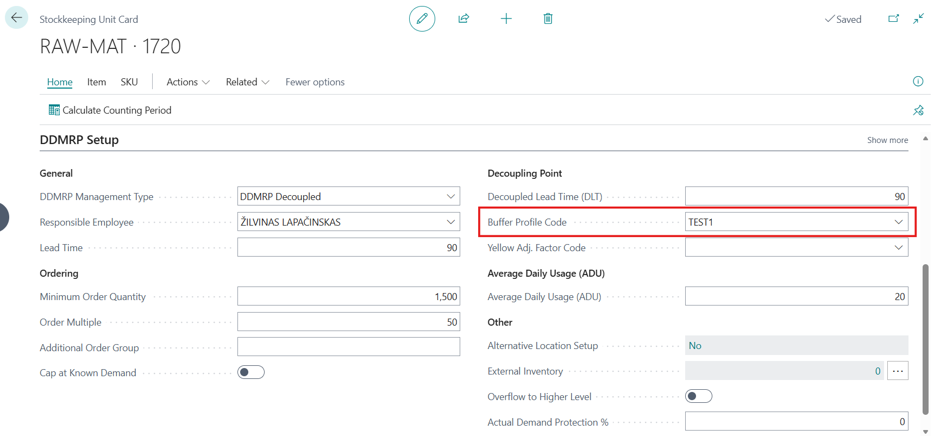
A profile is assigned to a SKU in the Buffer Profile Code field on the Decoupling Point FastTab of the Stockkeeping Unit Card. When a profile is assigned, the profile values are used for LTF, VF, Order Spike Horizon, ADU Profile Code, and ADU Calculation Type, and the corresponding SKU-level fields become read-only. Clear the code to manage these parameters on the SKU level again. See section SKU parameters.
Yellow Adjustment Factors
A Yellow Adjustment Factor is a classifier that adjusts how the Yellow buffer zone is calculated for the SKUs it is assigned to. It is useful when the standard Yellow zone (ADU × DLT) does not match reality — for example,[ŽL1.1] for seasonal items, items ordered on a fixed cycle, a temporary lead time increase caused by a supplier shutdown or vacation period, a temporary demand increase during the lead time, or stock accumulation ahead of high-demand or low-capacity periods — because the classifier lines let the adjustment change over time by date periods. When a SKU has no classifier assigned, the standard formula Yellow = ADU × DLT is used.
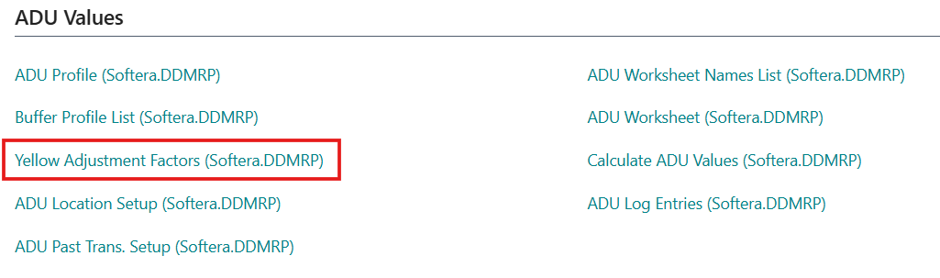
To open the list, go to the Role Center, choose Links, and then choose Yellow Adj. Factors under the ADU Values group. The list can also be opened from the ADU menu on the States and Alerts page and on the Requisition Worksheet, or by searching for Yellow Adjustment Factor List (Softera.DDMRP) in Business Central.
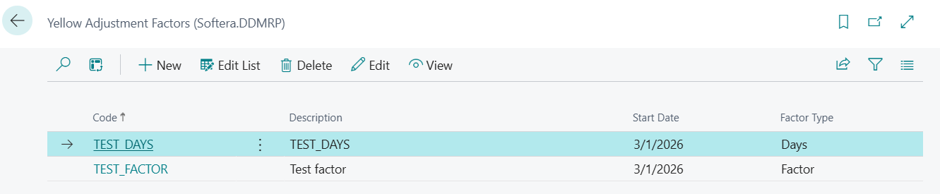
The Yellow Adjustment Factors list shows the existing classifiers with their code, description, start date, and factor type. In the example below there is one classifier of each type: TEST_DAYS applies a days offset, while TEST_FACTOR applies a multiplier.
The classifier header contains the following fields:
Field Name | Field Meaning |
|---|---|
Code | The unique identifier of the Yellow Adjustment Factor classifier. |
Description | A description of the Yellow Adjustment Factor classifier. |
Start Date | The start date from which the first classifier line is effective. Modifying this value recomputes the start and end dates on all lines. |
Factor Type | Whether the classifier applies an adjustment factor (multiplier) or an adjustment days offset when computing the Yellow buffer zone. |
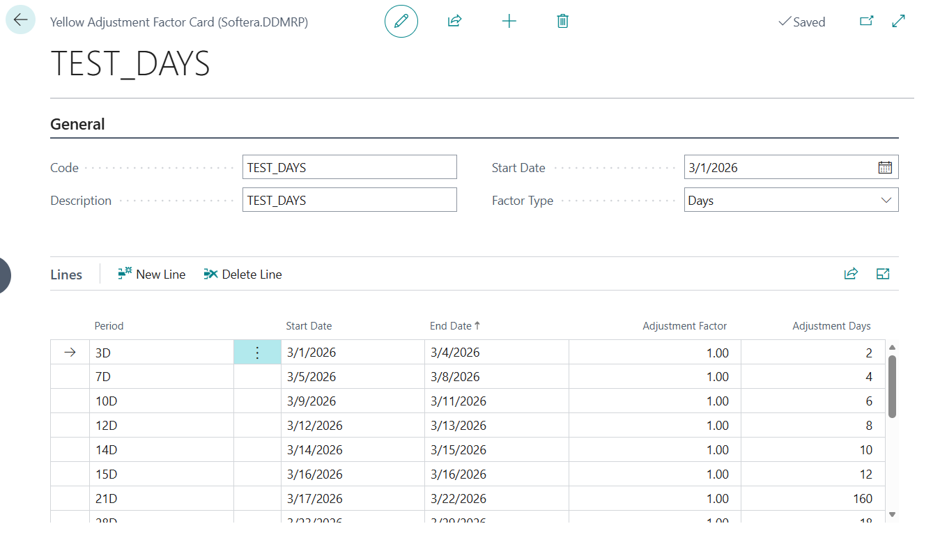
The classifier lines define the adjustment per date period:
Field Name | Field Meaning |
|---|---|
Period | The cumulative period from the classifier start date that this line covers. The line end date is computed as the classifier start date plus this period. Modifying this value recomputes the line end date and cascades to subsequent lines. |
Start Date | The start date of this line. Calculated automatically as the previous line end date plus one day, or as the classifier start date for the first line. |
End Date | The end date of this line. Calculated automatically as the classifier start date plus the line period. |
Adjustment Factor | The multiplier applied when the classifier Factor Type is Factor. Used in: Yellow = DLT × ADU × Adjustment Factor. |
Adjustment Days | The days offset applied when the classifier Factor Type is Days. Used in: Yellow = MAX(DLT + Adjustment Days; 0) × ADU. Can be negative. |
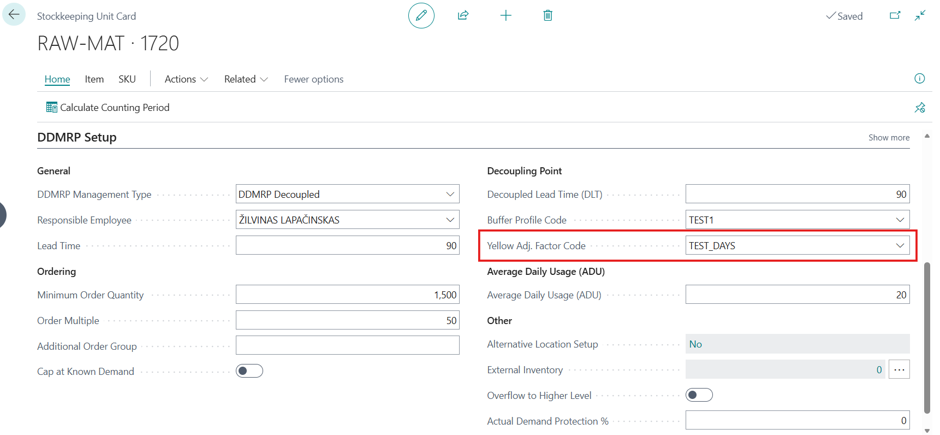
The classifier is assigned to a SKU in the Yellow Adj. Factor Code field on the Decoupling Point FastTab of the Stockkeeping Unit Card. During buffer calculation, the line whose date range covers the calculation date determines the adjustment, so the Yellow zone follows the classifier's calendar.
ADU Location Setup
ADU Location Setup lets SKU’s ADU be calculated from usage recorded at a different location than SKU’s own. Use it when the demand history that should drive a buffer is registered at another warehouse — for example, when stock is planned at one location but consumed at another.
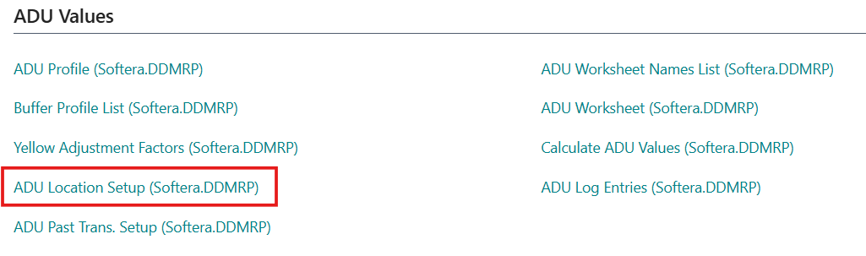
Open the page from the Links, as shown in the pictures below, or by searching for ADU Location Setup (Softera.DDMRP).
Add a line for each location whose entries should be borrowed for the calculation.
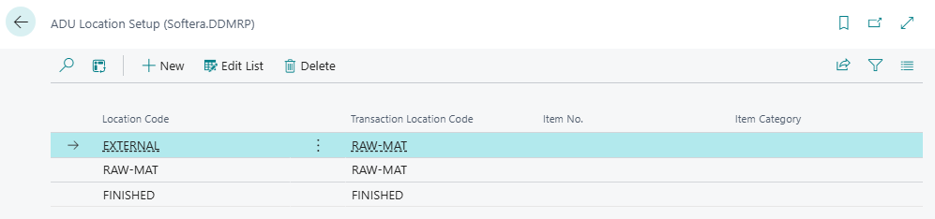
Field Name | Field Meaning |
|---|---|
Location Code | The SKU location whose ADU you want to calculate from another location's history. |
Transaction Location Code | The location whose item ledger entries are borrowed for the calculation. This can differ from the SKU location being calculated. |
Item No. | Optional. Limits this lookup rule to a single item. Leave blank to apply it to all items at the location. |
Item Category | Optional. Limits this lookup rule to one item category. Leave blank to apply it to all categories. |
ADU Past Trans. Setup
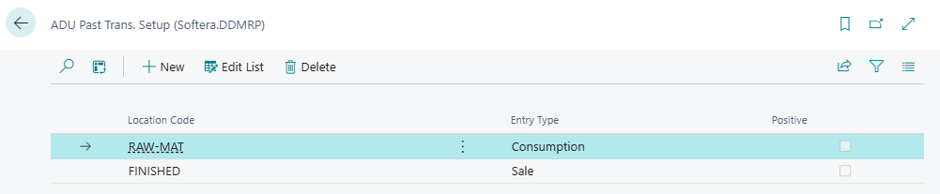
ADU Past Trans. Setup controls which item ledger entry types count as usage when ADU is calculated. By default, the system looks at outbound consumption; use this page to tell it exactly which entry types — and at which locations — should be included.
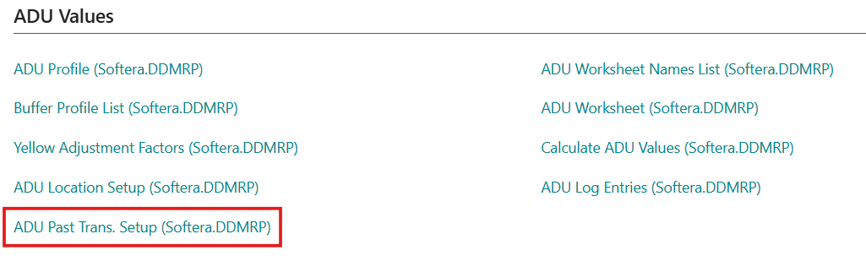
Open the page from the Links, as shown in the pictures below, or by searching for ADU Past Trans. Setup (Softera.DDMRP).
Add a line for each location and entry type that should be counted in the calculation.
Field Name | Field Meaning |
|---|---|
Location Code | The location whose item ledger entries this rule applies to. |
Entry Type | The item ledger entry type to count as usage (for example, Sale or Consumption). |
Positive | Normally only negative (outbound) quantities count as usage. Tick this to also include positive quantities of the selected entry type — for example, to net out sales returns. |