Overview
To establish an employee portal, Softera requires the following information.
Azure application setup for authorization (see the instructions here)
Azure Tenant ID
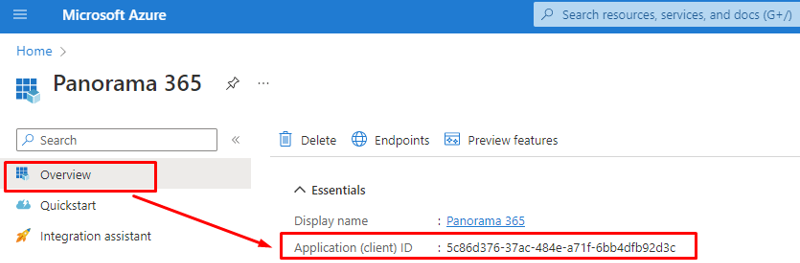
Azure Client ID
Client Secret (Value)
Email settings for notifications (see details here)
Server
Port
User Name
Password
Subdomain (e.,g. https://eportal.clientdomain.lt)
Log-in window picture (recommended JPG 1920×1080 px.)
Company Logo (recommended SVG/PNG, max. height 82 px.).
Company colors (for environment view and action buttons).
Azure Application Setup
To obtain the required setup, follow the steps outlined below.
Register a new application
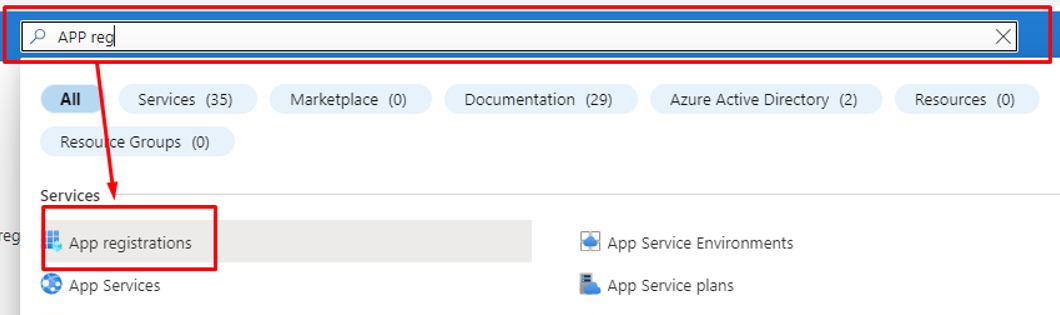
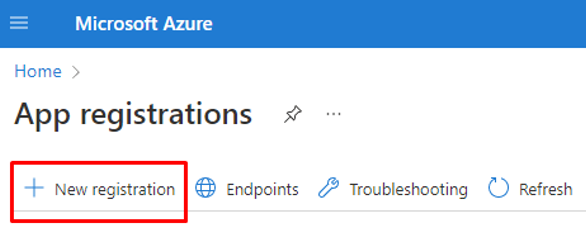
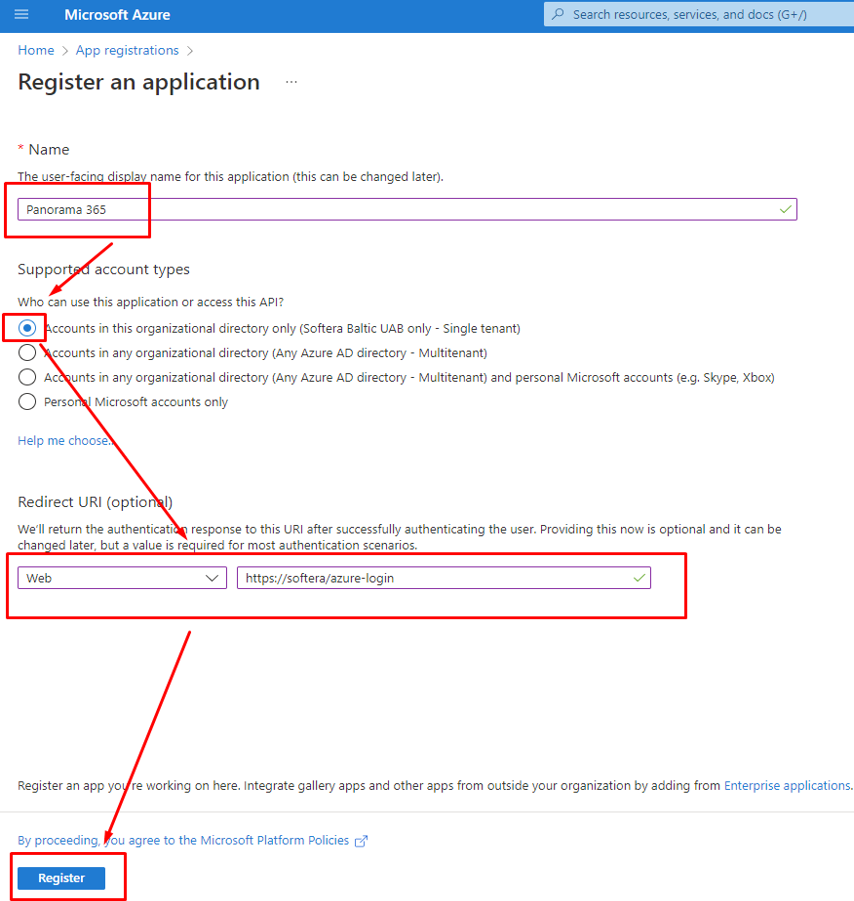
Add redirect URL
https://[customer Panorama 365 domain]/azure-login
Notice: Once the portal environment is created, we will send you the correct link. For now, you can add it just as it is in the example.
Add a mark for ID tokens
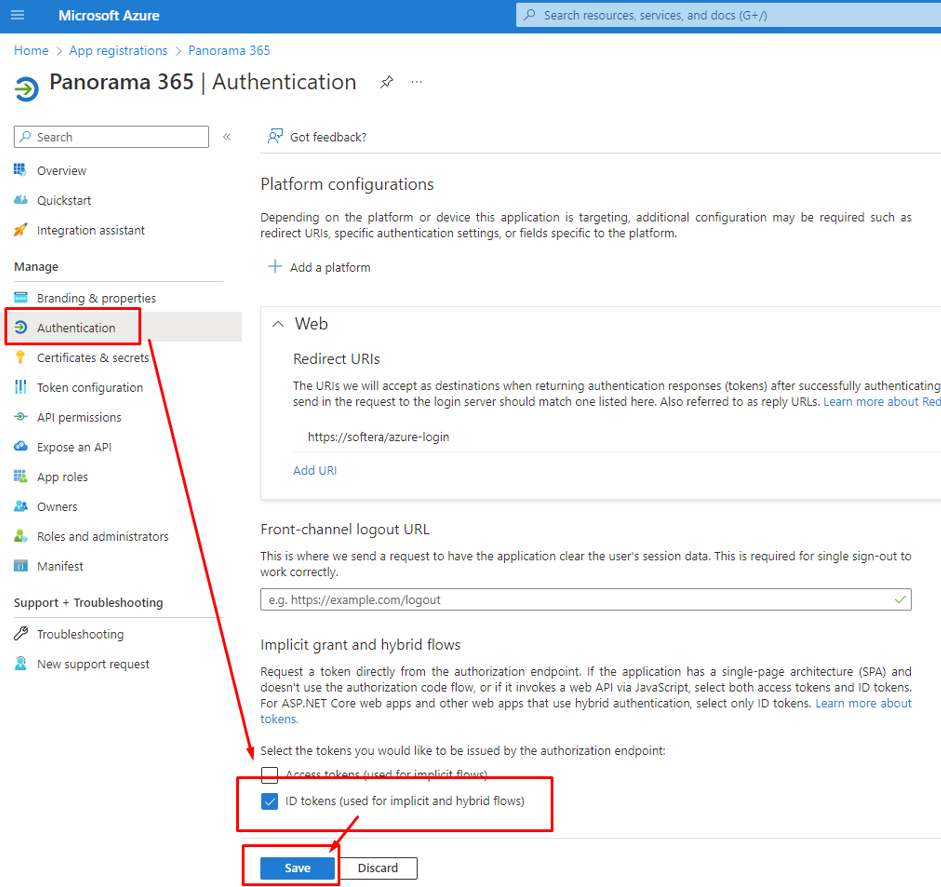
Get the Client’s Secret value
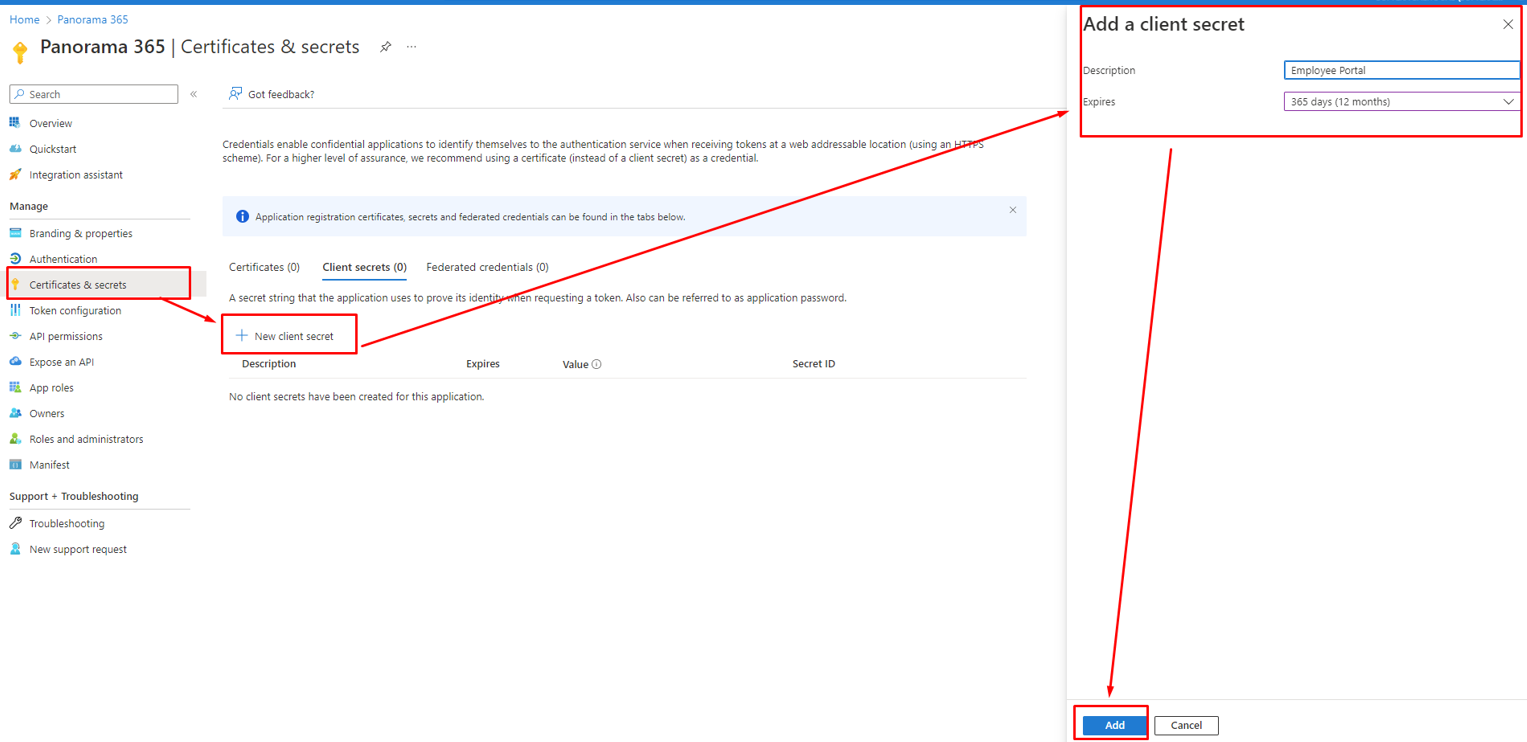
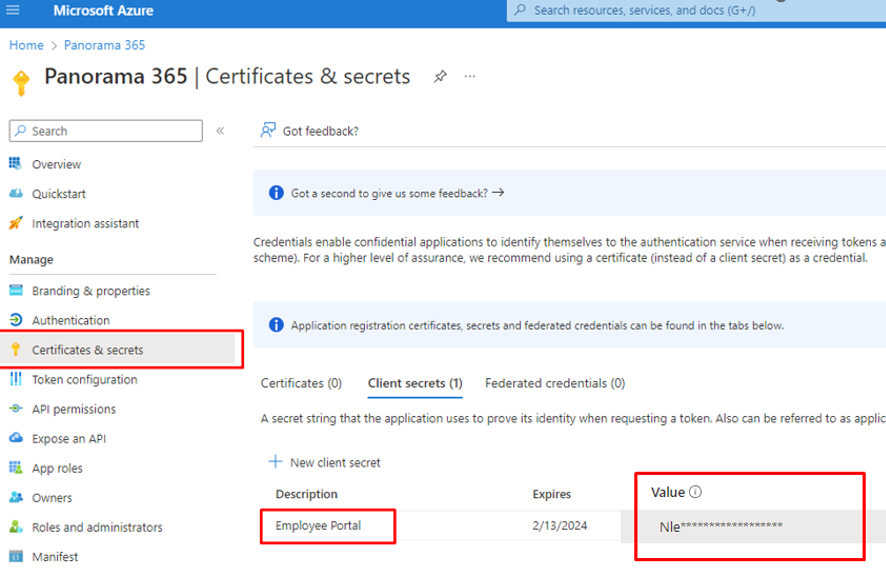
Expiry Date Alert
Microsoft recommends setting an alert as the Client Secret has an Expiry date. Once it expires, you will not be able to log in to the Employee Portal.
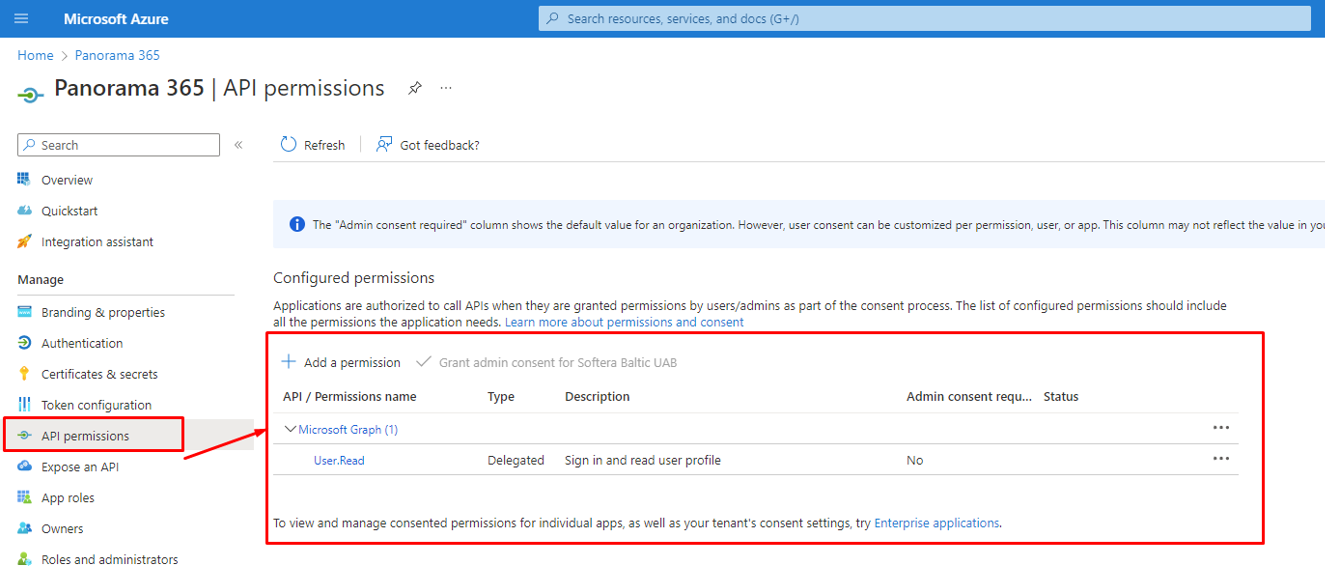
Add “User. read” permission
Get Application (client) ID
Email setup
An outgoing SMTP server and email address are required to send notifications from the employee portal to users (e.g., noreply@..., hr@...). The OAuth 2.0 method should be used for SMTP server authentication.
You can use your own email server (if your infrastructure allows it), or we can use our partners' Outbox server with the email address noreplay@panorama365.com.