DDMRP Explosion and Alerts give planners the day-to-day view of where each SKU stands and what needs attention. The explosion walks the supply chain to project on-hand balances over time, and the alerts translate those balances into simple color signals — so instead of reading raw numbers, a planner can see immediately which items are at risk of stocking out, which are healthy, and which are overstocked. This is the heart of the Visible and Collaborative Execution part of DDMRP: it turns the calculated buffers into clear, prioritized actions.
This section explains the States and Alerts page (the per-SKU signal overview), the Explosion Buffer (the full list of transactions behind each signal), and the related actions you can run from them.
States and Alerts
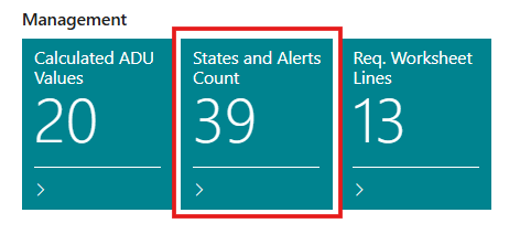
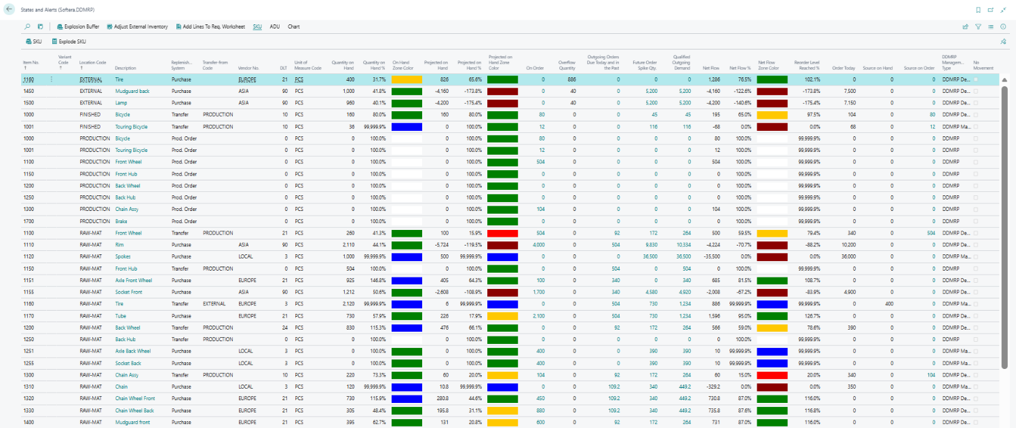
Open the States and Alerts page from the Role Center by choosing the States and Alerts Count tile, or by searching for States and Alerts (Softera.DDMRP). It gives planners a single per-SKU overview of current and projected inventory against the buffer, so you can spot immediately which items need ordering, rescheduling, or no action — without opening each SKU individually.
Field Name | Field Meaning |
|---|---|
Item No. | The item this line is calculated for. |
Variant Code | The item variant (color, size, etc.), if the item uses variants. |
Location Code | The location these values apply to. |
Description | The item description, shown for reference. |
Replenishment System | How the SKU is replenished (purchase, transfer, production, assembly). |
Transfer-from Code | The source location when the SKU is replenished by transfer. |
Vendor No. | The vendor used when the SKU is replenished by purchase. |
DLT | Decoupled Lead Time — used to calculate the buffer levels, the default order spike horizon, and the order spike threshold. |
Unit of Measure Code | The unit of measure the quantities are expressed in. |
Quantity on Hand | Current on-hand inventory for the SKU, taken from the explosion buffer on the work date. |
Quantity on Hand % | On-hand inventory as a percentage of execution Top of Green (TOG). Evaluated against execution TOR, TOY, and TOG to set the zone. |
On Hand Zone Color | The on-hand buffer zone color for the SKU. |
Projected on Hand | The lowest projected on-hand balance in the explosion buffer after all supply and demand events — the worst inventory point in the horizon. |
Projected on Hand % | The lowest projected on-hand balance as a percentage of the execution buffer top (copied from the explosion buffer's projected-on-hand alert after transaction). |
Projected on Hand Zone Color | The projected on-hand buffer zone color for the SKU. |
On Order | Open incoming supply for the SKU — the sum of incoming purchase, production, transfer, component, and external purchase events. |
Overflow Quantity | Positive overflow supply added from lower-level or related SKUs. Included in the Net Flow formula as extra available quantity. |
Outgoing Orders Due Today and in the Past | Qualified outgoing demand due on or before the work date (outgoing orders and planned orders). |
Future Order Spike Qty. | Total future demand identified as order spikes — daily accumulated demand above the Order Spike Threshold, due after the work date but within the Order Spike Horizon. |
Qualified Outgoing Demand | The demand included in the Net Flow calculation: outgoing orders due today or in the past, plus future order spikes. |
Net Flow | The DDMRP net flow position used to decide if replenishment is needed: On Hand + On Order + Overflow Quantity − Qualified Outgoing Demand. |
Net Flow % | Net Flow as a percentage of Top of Green. Below 100% means it is inside the buffer; the same zone thresholds as On Hand are used to color it. |
Net Flow Zone Color | The net flow buffer zone color for the SKU. |
Reorder Level Reached % | Net Flow as a percentage of Top of Yellow. Above 100% means no replenishment is needed; 100% or less means replenishment should be proposed. |
Order Today | The recommended quantity to order today. When Net Flow is below Buffer TOY, it is raised to Buffer TOG, then rounding and overstock-protection rules are applied. |
Source on Hand | On-hand inventory at the transfer-from (source) SKU, used to limit Carry Out Qty. to source availability. |
Source on Order | Incoming supply at the transfer-from (source) SKU — helps check upstream availability before carrying out a transfer. |
DDMRP Management Type | How the SKU is managed in DDMRP (Decoupled, Make-to-Order, or DDMRP). |
No Movement | Indicates no inventory movement was detected for the SKU during the ADU profile period — flags items to review before planning. |
Additional columns (hidden by default — can be added through Personalization) | |
Item Category Code | The DDMRP item category, used for filtering and reporting. |
Responsible Employee | The user responsible for this SKU. |
Execution TOR | Execution Top of Red — the minimum buffer protection level. |
Execution TOY | Execution Top of Yellow — the reorder point. |
Execution TOG | Execution Top of Green — the maximum inventory target. |
TOR | Standard Top of Red — equal to the Red Buffer; the bottom protection-zone boundary in standard buffer evaluation. |
TOY | Standard Top of Yellow, also the reorder point. Calculated as Red Buffer + Yellow Buffer. |
TOG | Standard Top of Green — the replenishment target. Calculated as Red Buffer + Yellow Buffer + Green Buffer. |
Carry Out Qty. | The quantity used when the action message is carried out. Starts from Order Today; may be limited by transfer-source inventory or changed manually in the worksheet. |
Order Spike Horizon | The time horizon used to identify order spikes. By default, equals the Decoupled Lead Time (DLT). |
Order Spike Threshold | The threshold for order spikes, calculated as DLT × ADU × LTF × (1 + VF). Demand above this is treated as a spike. |
Additional Order Group | The additional order group for this SKU. |
Description 2 | The item's secondary description, shown for reference. |
Yellow Adj. Factor Code | The Yellow Adjustment Factor classifier assigned to the SKU, used to adjust the Yellow buffer zone calculation. |
Basic meaning of DDMRP Alerts.
On hand % and on hand Color
Shows how close your current on-hand stock is to the ideal level. Use it to see, immediately which items are healthy, and which need attention right now.
Dark Red – Out of stock
Red – At risk of running out
Yellow – Below the ideal level, but not critical
Green – Healthy, at the ideal level
Blue – More stock than needed
Projected On hand % and Projected On hand Color.
Shows the lowest point your on-hand stock is expected to reach over the planning horizon. A negative value means upcoming demand is more than your current stock plus incoming orders can cover.
Dark Red – Upcoming demand cannot be covered
Red – At risk; new orders could cause a stock-out
Yellow – Projected below the ideal level, but not critical
Green – Healthy, at the ideal level
Blue – Projected stock above what is needed
Net Flow % and Net Flow Color
Shows how well your total availability (on hand plus on order) covers upcoming demand within the decoupled lead time, including any qualified order spikes. This is the signal that tells you whether to reorder.
Dark Red – Reorder now, using the fastest lead time possible
Red – Reorder urgently
Yellow – Reorder with the regular lead time
Green – No order needed yet
Blue – Too much on hand and on order
For more details press Show Explosion buffer.
Explosion Buffer
The Explosion Buffer is the detailed breakdown behind a SKU's alert. It lists every qualified and planned transaction — supply and demand — that the system used to project the SKU's on-hand balance over time, with the running balance before and after each one. Open it (from States and Alerts, choose Show Explosion Buffer) when you want to understand why a SKU shows a particular color or projected shortfall, and to see exactly which orders drive the result.

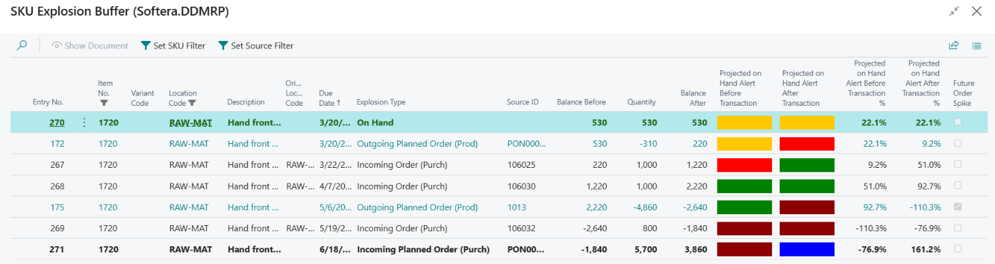
Here you will find all qualified and planned transactions to cover full demand of SKU.
Field Name | Field Meaning |
|---|---|
Entry No. | The entry number of this explosion buffer line. |
Item No. | The item this line belongs to. |
Variant Code | The item variant, if the item uses variants. |
Location Code | The location this line applies to. |
Description | The item description, shown for reference. |
Original Location Code | The original location code from the source document. |
Due Date | The due date of this transaction. |
Explosion Type | The type of explosion event that created the entry. |
Source ID | The source document number for the entry. |
Balance Before | The projected on-hand balance immediately before this transaction is applied. |
Quantity | The quantity of this transaction (positive for supply, negative for demand). |
Balance After | The projected on-hand balance immediately after this transaction. Used to find the lowest projected on-hand value and its alert zone. |
Projected on Hand Alert Before Transaction | The projected on-hand alert zone color before the transaction. |
Projected on Hand Alert After Transaction | The projected on-hand alert zone color after the transaction. |
Projected on Hand Alert Before Transaction % | The projected on-hand alert level before the transaction, as a percentage. |
Projected on Hand Alert After Transaction % | The projected on-hand alert level after the transaction, as a percentage. |
Future Order Spike | Indicates the outgoing demand line was identified as a future order spike — its quantity exceeded the Order Spike Threshold within the Order Spike Horizon. |
Additional columns (hidden by default — can be added through Personalization) | |
Source Line No. | The source document line number for the entry. |
Source Subtype | The source subtype of the entry. |
Source Type | The source record subtype for the entry. |
Table No. | The table number of the source record. |
Event Type | The event type for the explosion buffer entry. |
Buffer Line Type | How the entry affects projected inventory: White In = existing supply, Pink In = Order Today supply, Peach In = fulfill-to-max generated supply, White Out = existing demand, Yellow Out = generated demand from a lower level. |
Skip in Explosion | Indicates the entry is excluded from DDMRP explosion calculations — used, for example, to avoid double-counting internal transfers between alternative locations. |
You can read more about the individual buttons and page navigation in section Detailed Navigation.
Add Lines to Req. Worksheet
This action is optional — in the normal planning flow, lines are added to the Requisition Worksheet automatically by a separate scheduled job (see Planning process automation). The button is most useful during analysis, when you want to push specific SKUs to the worksheet right away.
Add Lines to Req. Worksheet takes the SKUs you select on the States and Alerts page and creates Requisition Worksheet lines for them, so you can turn the planning signals into actual supply orders. Use it when you want to act on specific items rather than regenerating the whole worksheet. Only SKUs with Management Type DDMRP Decoupled or DDMRP Make-to-Order are included; SKUs of other types are skipped silently even if selected.
On the States and Alerts page, select the SKUs you want to plan and choose Add Lines to Req. Worksheet.
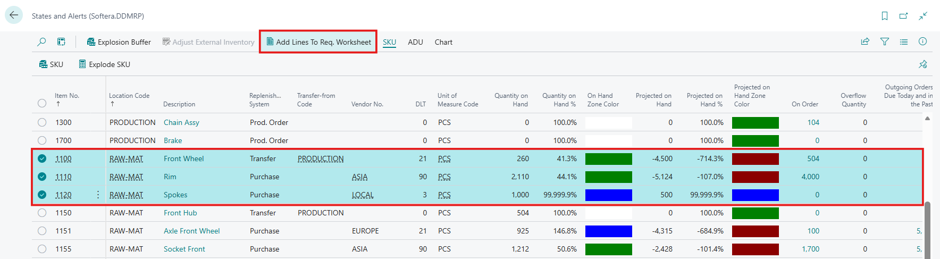
The selected lines are added to the Requisition Worksheet, where you can review the proposed quantities and due dates and carry them out as supply orders.
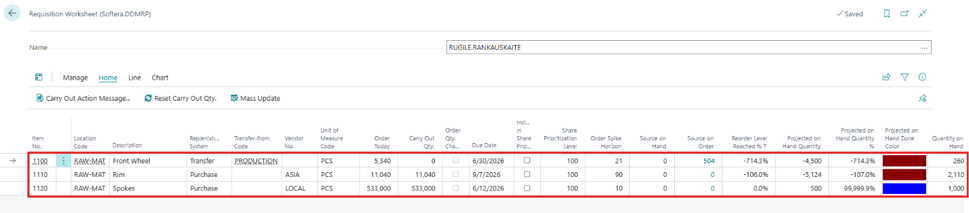
For a line to be added, all the following must be true:
At least one row is selected on the page. If nothing is selected, the action exits immediately.
Management Type is DDMRP Decoupled or DDMRP Make-to-Order. SKUs with a blank Management Type or type DDMRP are silently excluded, even if selected.
The Responsible Employee filter (if active) allows the SKU. When the system is set to filter by responsible employee, only SKUs assigned to the current user pass; others are silently dropped.
The SKU record exists on the Stockkeeping Unit table.
The Item record exists for that item number.
Not required: there is no check that Order Today or Carry Out Qty. is greater than zero. A line is created regardless of whether replenishment is needed.
If a line already exists for the SKU, it is updated, not duplicated.
Most common cause: check the DDMRP Management Type field on the SKU card for the items you are trying to add.
You can read more about the individual buttons and page navigation in section Detailed Navigation.